When I started looking for a clean, simple way to monitor network traffic on Linux, most of the tools I found were either too complicated or out of date. I didn't want to spend hours on terminal commands and settings just to see what my network was doing.
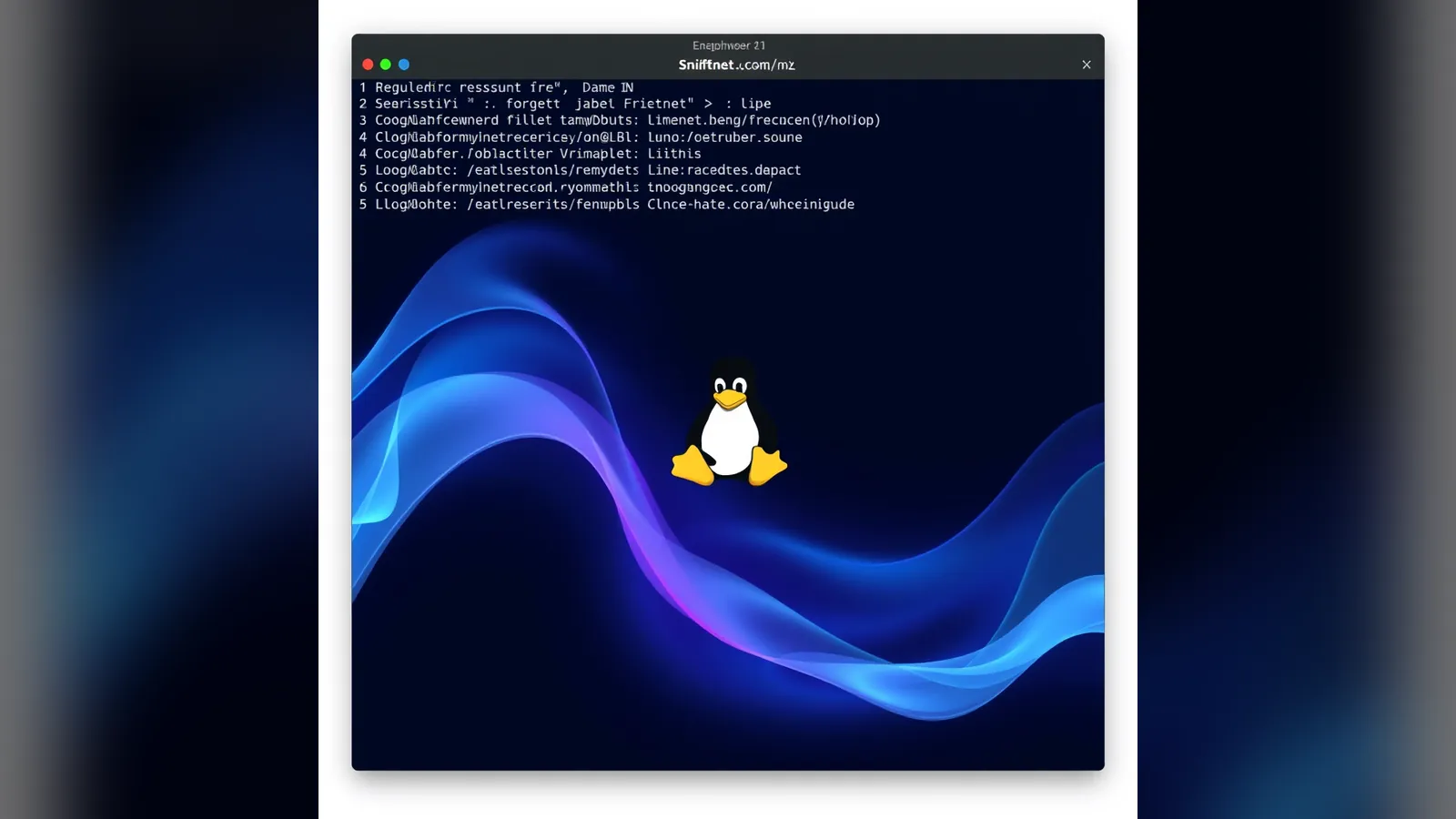
That's when I found Sniffnet, and I now use it regularly. It's lightweight, open source and has a proper graphical interface that just works. In this post I'll show you how I installed it on Linux and how I use it day to day. If you're new to network tools, this one is genuinely easy to pick up.
What Sniffnet is (and why I use it)
Sniffnet is a free, open-source network monitoring app written in Rust. It runs on Linux, Windows and macOS, and it lets me quickly see:
- Which protocols and services are in use (like DNS and HTTPS)
- Where connections are going
- Live traffic levels and stats
- Which country each connection goes to
I like it because there's almost no setup. I open it, pick my network interface and I'm straight away looking at useful data. I use it to check bandwidth, keep an eye on smart devices that seem a bit too chatty, or just get a live view of what's going on.
What I needed before installing
- A Linux distro. I've used it on Ubuntu and Debian, and it works on others too
libpcap, which is usually already installed (the .deb package pulls it in if it's missing)- Admin (sudo) access to install it
Method 1: Install the .deb package (Ubuntu, Debian, Mint and so on)
This is how I first installed it on my main machine.
Step 1: Go to the Sniffnet releases page on GitHub and download the Linux .deb package for your system. For most PCs that's Sniffnet_LinuxDEB_amd64.deb (use the arm64 one for a 64-bit Raspberry Pi).
Step 2: Open a terminal in your Downloads folder and install it:
cd ~/Downloads
sudo apt install ./Sniffnet_LinuxDEB_amd64.deb
Using apt install with the ./ in front of the file name installs the package and sorts out any missing dependencies in one go. (The older way, sudo dpkg -i followed by sudo apt-get install -f, still works too.)
Method 2: Run the AppImage (portable, nothing to install)
On another machine, I tried the AppImage version instead. It doesn't need installing and runs on nearly any Linux distro.
Step 1: Download the AppImage from the same releases page, for example Sniffnet_LinuxAppImage_amd64.AppImage.
Step 2: Make it executable:
chmod +x Sniffnet_LinuxAppImage_amd64.AppImage
Step 3: Run it:
./Sniffnet_LinuxAppImage_amd64.AppImage
No install, no hassle. Capturing traffic needs extra permissions, so if no network adapters show up, close it and start it with sudo in front instead.
How I use Sniffnet day to day
Step 1: Choose the interface
The first thing Sniffnet asks is which network interface to watch. On older systems these are called eth0 (Ethernet) and wlan0 (Wi-Fi). On most modern distros they have names like enp3s0 and wlp2s0. If you're not sure which one you're using, run ip a and look for the one with your IP address.
Step 2: Watch the live dashboard
Once monitoring starts, I get a live overview with:
- Traffic graphs over time
- The busiest hosts and services
- Which countries connections are going to
- Byte and packet counts
Step 3: Filter the traffic
I often filter to focus on DNS or HTTPS, depending on what I'm testing. The filters are all point-and-click, so there are no commands to learn.
Step 4: Dig into the details
The Inspect page lists every connection with its source and destination addresses, ports, packet count and country. It updates in real time, so I often leave it running while I test network tools, run updates or stream something, just to see what's using the bandwidth.
Do I need sudo every time?
Sniffnet needs extra permissions to capture packets. The good news is that the current .deb package sorts this out for you when it installs, so I can open it from the app menu like any other program.
If you've built Sniffnet yourself (for example with cargo install sniffnet), you can give it just the permissions it needs instead of running it as root. Point the command at wherever your copy lives:
sudo setcap cap_net_raw,cap_net_admin=eip ~/.cargo/bin/sniffnet
Only give these permissions to software you trust. This doesn't work for the AppImage, which needs sudo instead.
Quick reference
| Task | Command or action |
|---|---|
| Download Sniffnet | github.com/GyulyVGC/sniffnet/releases |
| Install the .deb package | sudo apt install ./Sniffnet_LinuxDEB_amd64.deb |
| Make the AppImage executable | chmod +x Sniffnet_LinuxAppImage_amd64.AppImage |
| Run the AppImage | ./Sniffnet_LinuxAppImage_amd64.AppImage (add sudo if no adapters show) |
| Find your interface name | ip a |
| Permissions for a self-built copy | sudo setcap cap_net_raw,cap_net_admin=eip ~/.cargo/bin/sniffnet |
Final thoughts
Sniffnet has become one of my go-to tools for a quick look at what's happening on my network. It's simple enough for beginners but still useful in a home lab.
Whether I'm troubleshooting slow speeds, checking bandwidth or looking into odd traffic, Sniffnet gives me what I need with very little effort. If you want a fast, visual and easy network monitor for Linux, give it a try. And if you want to compare it with other tools, see my five network monitoring tools.