Whether you're keeping an eye on your home Wi-Fi or looking after a small office, it helps to know what's happening on your network. Monitoring tools show you how much data you're using, spot anything unusual and help you track down problems quickly.
Here are five tools that cover everything from "what's using my internet?" to deep packet analysis.
1. GlassWire (Windows, Android)
What it does: GlassWire shows live graphs of your internet activity: which apps are using your connection, who they're talking to, and an alert when something new or unusual starts using the network.
Who it's for: beginners and home users who want a clear, easy-to-read view of what their PC is doing.
Main features:
- Bandwidth use by app
- Real-time activity graphs
- Alerts when new apps connect
- Firewall controls (on the paid Premium plan)
There's a free version and a paid one. It monitors the computer it's installed on, rather than your whole network.
2. Wireshark (Windows, macOS, Linux)
What it does: Wireshark captures the actual data packets travelling over your network and lets you inspect them in detail. It's the tool network engineers reach for when something really strange is going on. I used it to capture the routing protocol traffic for my dissertation lab.
Who it's for: students, anyone learning networking, and IT pros.
Main features:
- Inspects packets right down to individual fields
- Understands thousands of protocols
- Works live or with saved capture files
- Powerful filters, such as
dnsorip.addr == 192.168.1.10
It's free and open source. Be warned: the first time you open it, the amount of information is overwhelming. Start with a filter.
3. Fing (Android, iOS, Windows, macOS)
What it does: Fing scans your network and lists every device connected to it, with its name, maker and IP address. It's the quickest way to answer "what is that unknown device on my Wi-Fi?".
Who it's for: home users who want to keep track of every gadget on their network.
Main features:
- Fast network scans
- Identifies devices and alerts you to new ones
- Internet speed tests
- Basic security checks, such as open ports on your router
The core scanning is free. Some extras need a paid subscription or Fing's hardware box.
4. PRTG Network Monitor (Windows)
What it does: PRTG is a full monitoring system with customisable dashboards. It keeps watch on bandwidth, uptime and the health of devices across the whole network.
Who it's for: small offices, home lab fans and anyone with a more complicated network.
Main features:
- Monitors bandwidth, CPU, memory, disk space and uptime
- Uses "sensors" such as SNMP, ping and HTTP checks
- Web-based dashboard
- Alerts by email or app
It runs on a Windows machine. There's a free version for a limited number of sensors, which is plenty to learn on.
5. NetWorx (Windows, macOS, Linux)
What it does: NetWorx tracks how much data you're using and how fast your connection is. It's lightweight and great if you're on a capped connection, such as mobile broadband, or just want detailed usage reports.
Who it's for: anyone on a data cap, or anyone who wants to keep a close eye on usage.
Main features:
- Usage per application on the computer it runs on, or for your whole connection if your router supports SNMP or UPnP
- Alerts when you're getting close to a data limit
- Live traffic graphs
- Daily, weekly and monthly reports
Bonus: Sniffnet (Windows, macOS, Linux)
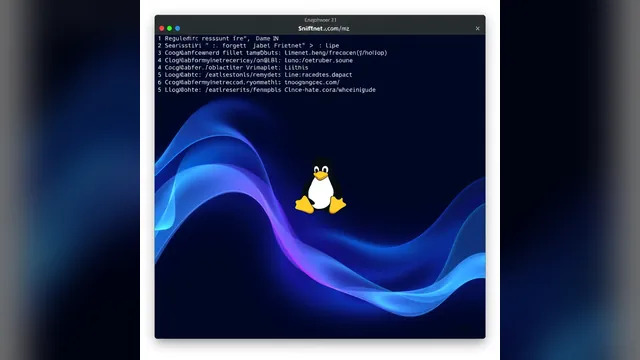
If you want something friendlier than Wireshark but more detailed than a usage meter, I really like Sniffnet. It's free, open source and shows live traffic, protocols and where your connections are going. Here's how I installed and use Sniffnet on Linux.
Which one should you start with?
- Just want to see what's on your Wi-Fi? Start with Fing.
- Want to know which app on your PC is eating your bandwidth? Try GlassWire or NetWorx.
- Learning networking properly? Get Wireshark (and try Sniffnet for a quick overview).
- Looking after lots of devices? PRTG is worth a look.
Start simple, and move on to the more powerful tools when you're ready. You'll be monitoring your network like a pro in no time.