Think of your home network as the plumbing of your digital life. Streaming, working from home, shouting at Alexa: it all relies on a stable connection. Getting it right isn't just about plugging in a router and hoping for the best, so here are the tweaks I'd make, one at a time. If you're starting from scratch, read my basic home network guide first.
Start with a decent router
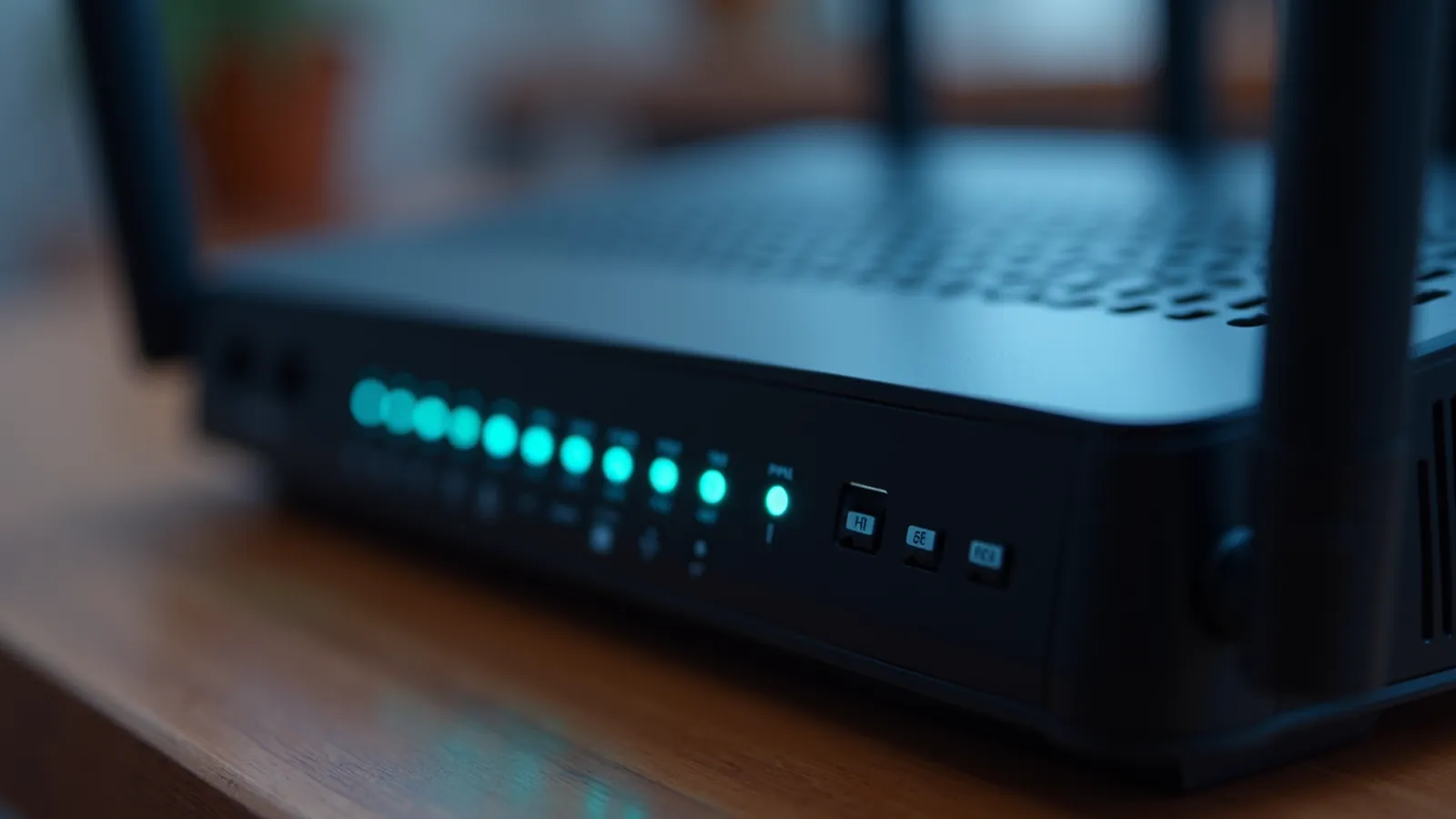
Your router is your internet's HQ, and a good one makes a big difference.
- Look for a dual-band or tri-band router. It spreads devices across different frequencies so they don't all fight for space.
- If you're buying new, a Wi-Fi 6 (or newer) router handles lots of devices at once much better than older models.
- MU-MIMO lets the router talk to several devices at the same time, which helps when everyone is streaming or gaming at once.
- Put it somewhere central and open, not shoved in a cupboard.
Give your Wi-Fi a better name
Don't leave your network called something like "BT-XYZ123" or "VM123456". The default name gives away which router you have. Rename it to something personal but anonymous: no surnames, house numbers or addresses.
Lock it down
You wouldn't leave your front door wide open.
- Change any generic admin password on the router. Default passwords are easy to find online.
- Use WPA3, or WPA2/WPA3 mixed mode if older devices need it.
- Turn off WPS (Wi-Fi Protected Setup). The PIN method in particular has a long history of being cracked.
Give important devices a fixed IP address
If you've got a printer that keeps vanishing, a Pi-hole, a NAS or a smart home hub, give it an address that never changes. The easiest way is a DHCP reservation in your router's settings: the router always hands that device the same address. It only takes a few clicks. You can also set a static IP on the device itself, and I show how in my Windows static IP guide.
Use the guest network (even for smart devices)
Most routers have a guest Wi-Fi option. Turn it on for visitors, and consider putting smart plugs, bulbs and other gadgets on it too. If one of them is ever compromised, it can't easily reach your laptops and phones.
Prioritise what matters
Ever had a video call freeze because someone started streaming a film? Turn on QoS (Quality of Service) if your router has it. It lets you put video calls, gaming or work laptops ahead of less urgent traffic like big downloads.
Use the parental controls
Most modern routers and broadband providers include parental controls, such as website filtering, bedtime schedules and per-device time limits. If your router has an app, you can usually manage it all from your phone. UK broadband providers also offer free network-level filters you can switch on in your account.
Keep the firmware up to date
Most provider-supplied hubs update automatically, but routers you've bought yourself often don't. Check the admin page for a firmware update option every few months. Updates bring security fixes and sometimes better performance.
Turn off what you don't use
Features like remote management, UPnP and Telnet sound handy, but they can open holes you don't need. If you're not using them, switch them off. If a games console complains about its NAT type after you turn off UPnP, you can set up a specific port forward for it instead.
Back up your settings
Once everything is set up just the way you like it, look for a backup or save configuration option in the router's settings. If you ever reset the router, you can restore everything from one file instead of starting again. (This usually only works on the same make and model.)
Wrapping up
Home networking doesn't have to be confusing. A few simple tweaks can make your Wi-Fi faster and more secure and give the whole household a smoother time online.
So take ten minutes, log into your router and start tweaking. You'll thank yourself the next time a video call doesn't freeze and nobody's complaining about lag.