If you're new to networking, setting up a home network can look complicated, but it doesn't have to be. Whether you want to share your internet connection, stream films or just make sure everything at home is secure, this guide walks you through the essentials.
What you'll need
- A broadband connection
- A router (usually supplied by your broadband provider, or one you've bought yourself)
- Ethernet cables (optional, but great for anything that needs a steady connection)
- The devices you want to connect: laptops, phones, smart TVs and so on
STEP 1Connect your router to the internet
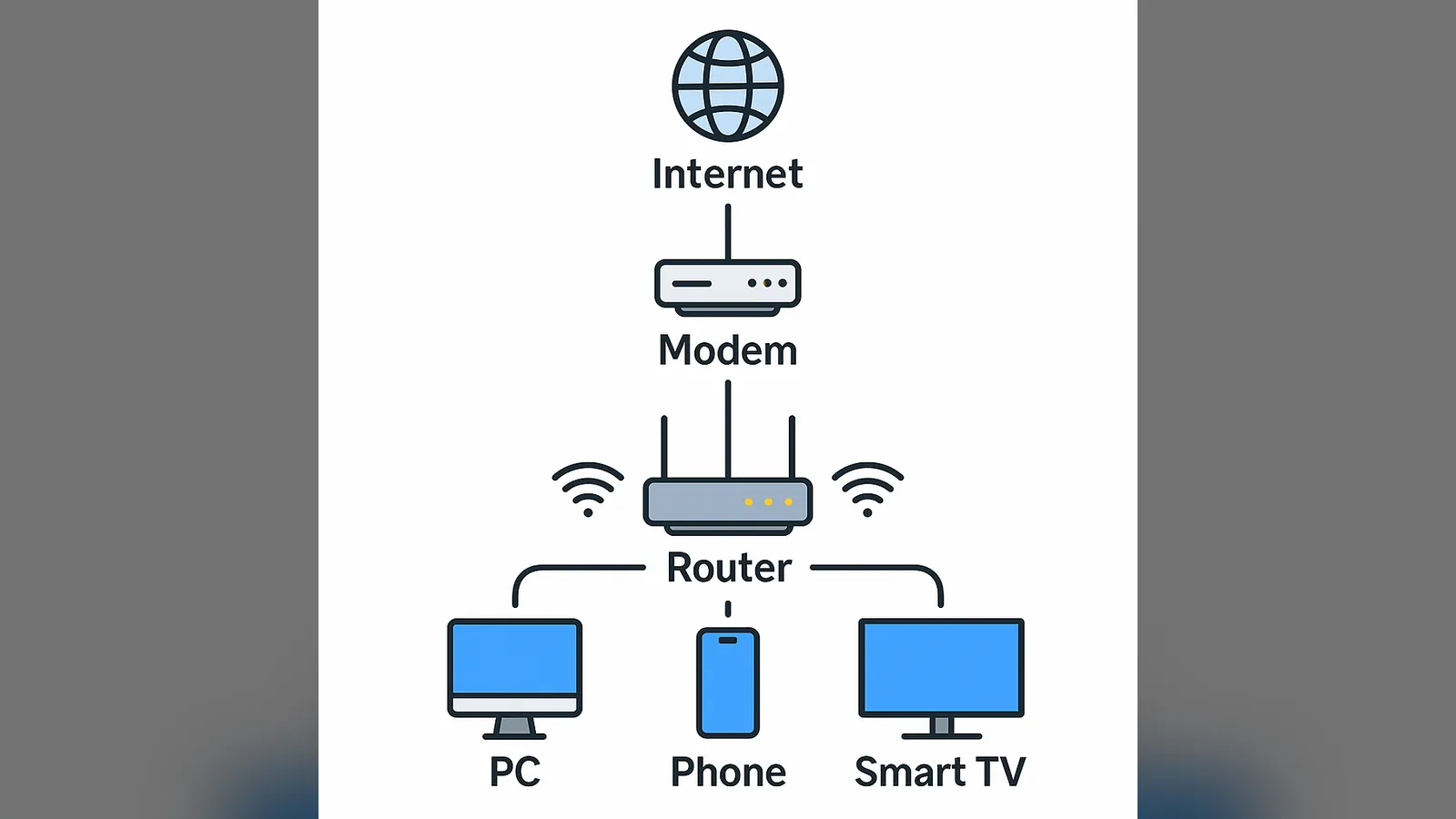
Most UK broadband providers send a combined modem and router (a "hub"), so this step is usually simple:
- Copper or part-fibre (FTTC) broadband: plug the hub into your phone socket with the cable provided.
- Full fibre (FTTP): plug the hub into the fibre box (the ONT) on your wall with an Ethernet cable.
- Cable broadband (Virgin Media): connect the hub to the cable socket with the coaxial cable.
If you're using your own router alongside a separate modem, connect the modem to the router's WAN or Internet port with an Ethernet cable. Power everything on and give it a few minutes to connect.
STEP 2Log into the router's admin page
- Connect a device to the router by Wi-Fi or Ethernet.
- Open a web browser and type in the router's address. Common ones are
192.168.1.1,192.168.0.1and, on BT hubs,192.168.1.254. It's usually printed on a sticker on the router. - Log in with the admin password from the sticker or manual.
STEP 3Change the default admin password
If your router came with a generic admin password such as "admin", change it straight away to something strong and unique. Newer routers usually come with a unique password printed on the sticker, which is fine to keep as long as nobody else can see the router.
STEP 4Set up your Wi-Fi
- Go to the wireless settings page.
- Give your network (the SSID) a name you'll recognise that doesn't give away who you are. No surnames or house numbers.
- Choose WPA3 security if all your devices support it, or the WPA2/WPA3 mixed mode if some older devices struggle. Never use WEP or an open network.
- Set a strong Wi-Fi password. A few random words strung together are easy to type and hard to guess.
STEP 5Connect your devices
Search for your Wi-Fi network on each device and connect with the new password. For a games console, desktop PC or smart TV near the router, a cable is even better.
STEP 6Set up a guest network (optional)
Most routers have a guest network option. Visitors get internet access but can't see your own devices. It's worth turning on, and I go into it a bit more in my home networking tips.
STEP 7Keep your router's firmware updated
Firmware updates fix security holes. Most broadband provider hubs update themselves automatically, but if you've bought your own router, check the admin page for updates every few months or turn on automatic updates if it has them.
Bonus: use your provider's app
Many broadband providers now have apps that make managing your network much easier. They often let you:
- See which devices are connected
- Change your Wi-Fi name and password
- Set up parental controls or a guest network
- Run speed tests
- Get alerts about your connection
If your provider has one, it's worth installing. Check their website or your phone's app store.
Tips for a better network
- Use Ethernet cables for anything that needs a stable, fast connection, like consoles and desktop PCs.
- Put the router somewhere central and out in the open, not in a cupboard or behind the TV.
- Keep it away from thick walls, mirrors, fish tanks and microwaves, which all weaken Wi-Fi.
- If one router can't cover the whole house, a mesh Wi-Fi system usually works better than a cheap plug-in extender.
Wrapping up
Setting up a basic home network is easier than it looks. With a few simple steps, you'll have a secure and reliable network for every device in the house. Next, have a look at my home networking tips to make it faster and safer still.