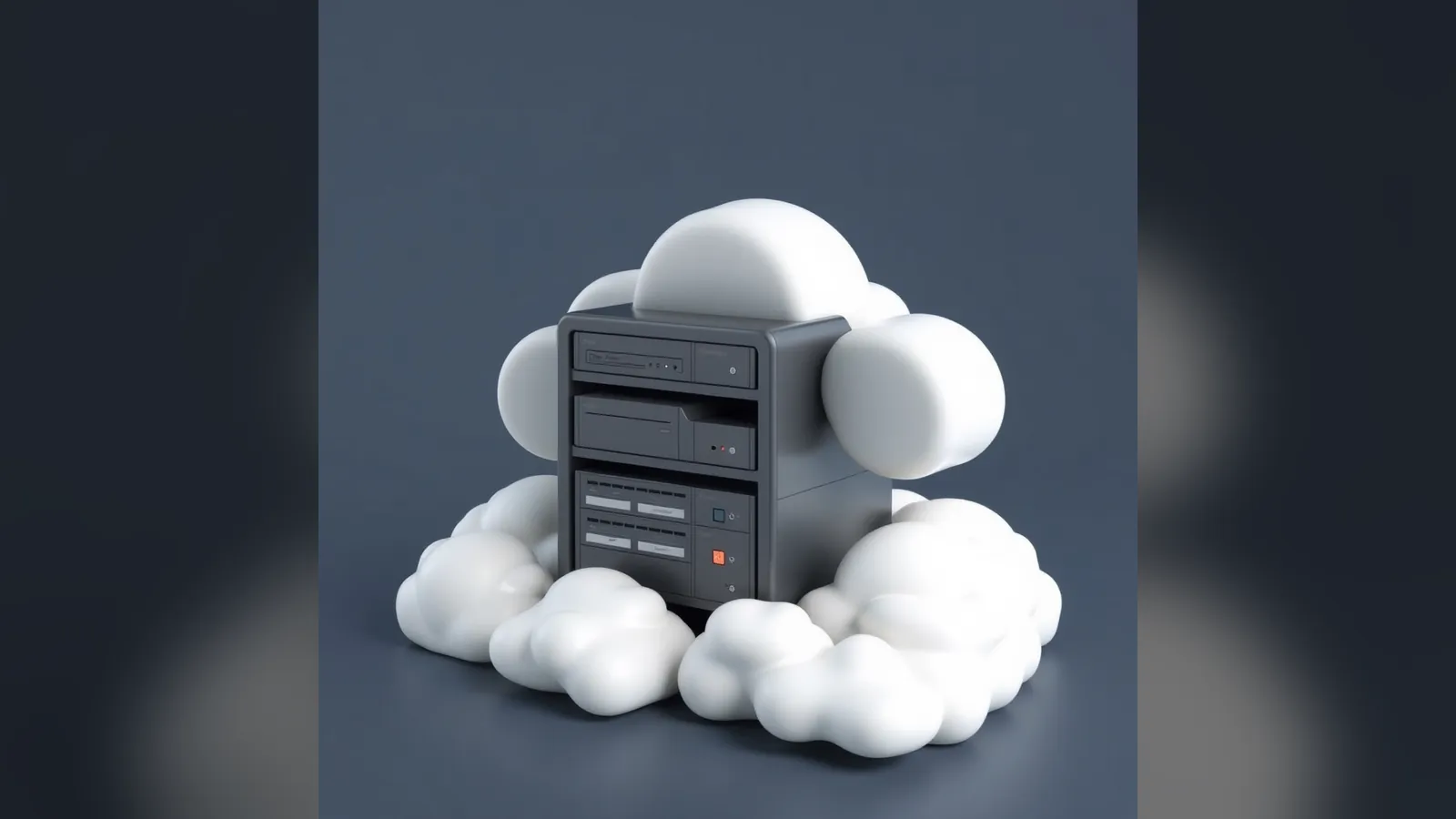
Cloud storage is brilliant for syncing files between devices and sharing them with other people, but only if you set it up properly. Here's how I use it, which services I pick for which jobs, and the rules I follow to keep my data safe.
What I use cloud storage for
Here's how I use cloud storage across personal, work and home lab jobs:
| Use | My tool of choice |
|---|---|
| Syncing files between devices | Google Drive (Docs, Sheets, PDFs) |
| Secure backup of important data | pCloud with client-side encryption |
| Family photo and video archive | iCloud (built into Apple devices) |
| Windows file archiving | OneDrive (comes with Microsoft 365) |
| Sharing files with other people | Dropbox or Google Drive shared links |
Choosing the right platform
You don't need every service going. What matters is picking the right one for what you need and sticking with it. Here's how I'd weigh them up:
| Platform | Pros | Best for |
|---|---|---|
| Google Drive | Generous free tier (15 GB shared with Gmail and Photos), great for working together on documents | Android and Chromebook users |
| iCloud | Seamless on Apple devices, automatic photo and device backups | iPhone, iPad and Mac households |
| OneDrive | Built into Windows, works hand in hand with Office, 1 TB with Microsoft 365 | Windows users |
| Dropbox | Fast, reliable syncing and good sharing features | Freelancers and sharing with clients |
| pCloud | One-off "lifetime" plans, optional client-side encryption | Privacy-focused users |
For anything sensitive, I avoid relying on services where the provider holds the encryption keys, unless I add my own encryption on top with something like Cryptomator.
How I set up Google Drive properly
I use Google Drive for most document collaboration and shared folders. Here's how I set it up:
Step 1: Lock down the account
- I sign in with a dedicated Google Workspace account.
- Turn on 2-Step Verification. Text message codes are better than nothing, but I use an authenticator app or a passkey/security key.
Step 2: Organise the folders
- Create a handful of top-level folders, for example Work, Documents, Projects and Photos.
- Name files consistently. I use
YYYY-MM-DD_filename, so everything sorts by date automatically. - Share whole folders rather than individual files. It's much easier to keep track of who can see what.
Step 3: Set up syncing sensibly
On my computers I install Google Drive for desktop, but I don't sync everything blindly:
- I use streaming or choose specific folders to mirror, so the whole Drive doesn't fill up my SSD.
- On my phone, I only turn on automatic uploads if I actually need them.
- I keep very large files locally and back them up separately.
Keeping cloud storage secure
I treat cloud services as handy sync tools, not my main backup. Here's what I do:
- Encrypt sensitive files before uploading, using Cryptomator or VeraCrypt.
- Use version history. Google Drive, OneDrive and Dropbox can all roll files back to earlier versions, which is a lifesaver after a mistake or a ransomware attack.
- Limit sharing links. Share with named people where possible, and set expiry dates on links if your plan allows.
- Check signed-in devices regularly, and remove anything you don't recognise.
What I don't do
| Don't do this | Why it's a problem |
|---|---|
| Use the cloud as your only backup | If the account is hacked, locked or files are deleted, they can all go at once |
| Sync every folder to every device | Wastes bandwidth and storage, and a mistake on one device spreads everywhere |
| Upload sensitive data unencrypted | Accounts get breached, and providers can be legally required to hand data over |
| Ignore your account's device and login history | You won't notice if someone else has got in |
Cloud storage in my home lab
In my home lab I use cloud storage in two ways:
- rclone on Linux to mount cloud drives and script syncs.
- Scheduled backups from my NAS (Synology or TrueNAS) to Google Drive, inside encrypted containers.
That way my off-site backups run automatically, and the cloud provider only ever sees encrypted data.
Final thoughts
Cloud storage is powerful when it's one part of a layered approach. I treat it as an always-available sync copy, not a safety net. The real protection comes from combining cloud sync with local backups, encrypted archives and good file habits. If you want a simple rule to follow, look up the 3-2-1 backup rule in my common IT issues guide.
If you're juggling lots of devices or just want more control over your files, setting up your cloud storage properly is the first step.